Dashboard Tour
The admin dashboard is the first thing you see after logging in. It gives you a quick overview of your site and shortcuts to the most common tasks.
Finish Setup checklist
On a fresh install, the dashboard shows a Finish Setup card above the stat cards. It lists seven security items to complete before your site goes live, each rated High, Medium, or Low risk.
Three items are auto-verified by RuntCMS:
- HTTPS is active — checked from the current request
- install.php has been deleted — checked on disk
- display_errors is off — checked from PHP config
The remaining items (database privileges, config.php accessibility, 2FA, backups) are self-confirmed — tick the checkbox once you've done them. The card shows a progress count and a All done — hide this card button that appears once everything is ticked. Hiding the card is permanent.
The dashboard
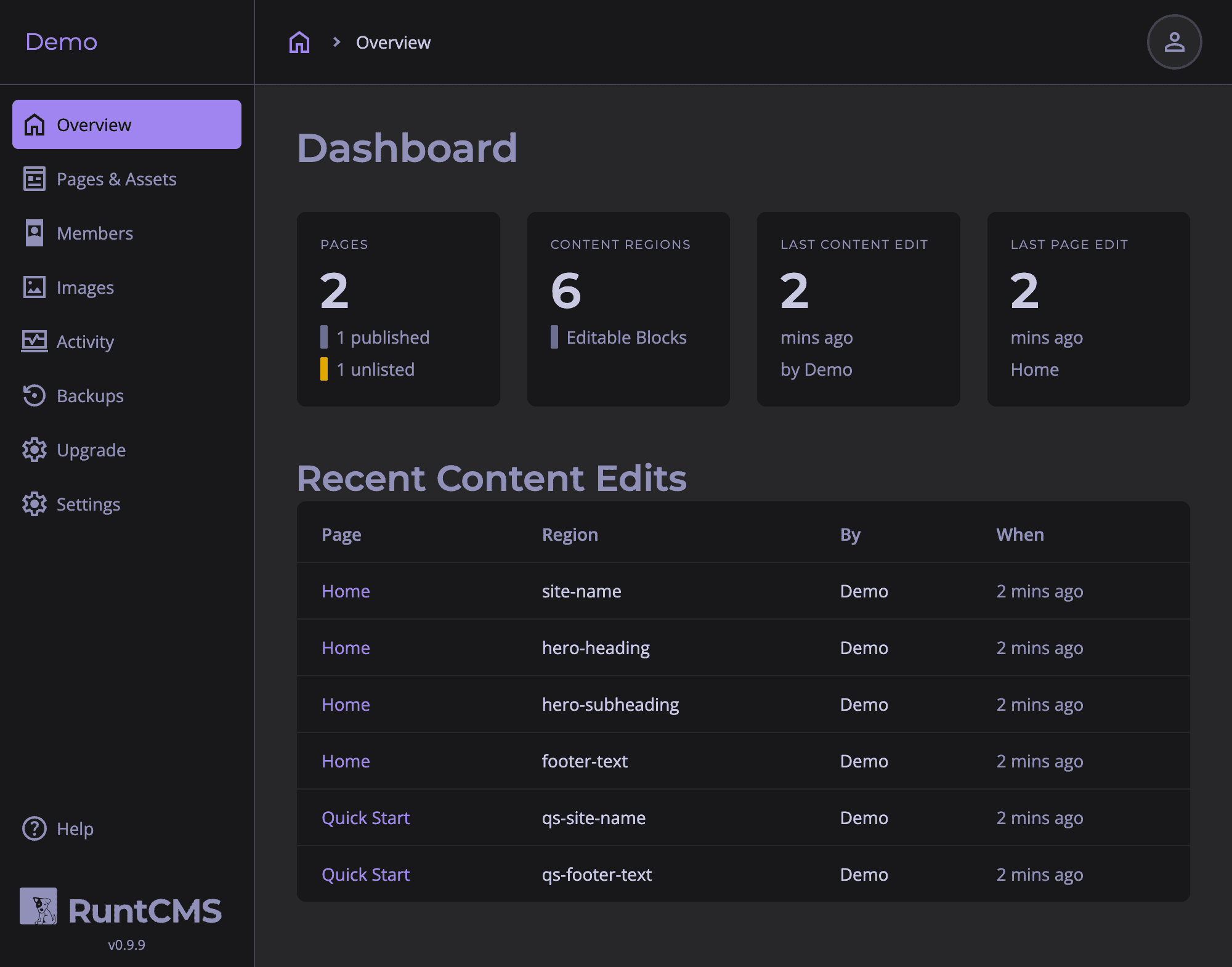
The dashboard has two main sections:
Stat cards
Four cards across the top show:
- Pages — total number of pages (published, draft, and unlisted)
- Regions — total editable text regions across all pages
- Users — number of active user accounts
- Images — total images in the media library
Clicking a stat card takes you to the corresponding section.
Recent edits
A list of the last 10 content saves, showing:
- Which page and region was edited
- Who made the edit
- When it was saved (relative time — "2 hours ago")
This gives you a quick audit trail and lets you spot unexpected changes.
Navigation
The left sidebar (on desktop) contains the admin navigation:
- Dashboard — this page
- Pages — create and manage pages
- Users — manage admin and editor accounts
- Image Library — browse all uploaded images
- Partials — manage reusable HTML snippets
- Settings — site name, email, robots.txt
The top bar shows your name and a link to your profile. From your profile you can change your password and manage two-factor authentication.
Going to the live site
The top bar includes a View Site link. Click it to open the live site in a new tab. Because you're logged in as an admin, you'll see the runtbar toolbar at the bottom of every page — ready to edit.
Logging out
Click your name in the top bar and select Log out, or click the Log Out button in the runtbar on the live site.