Managing Pages
Pages are the core of your site. Each page has a slug (URL), a title, a status, and an HTML file that defines its layout and editable regions.
The pages list
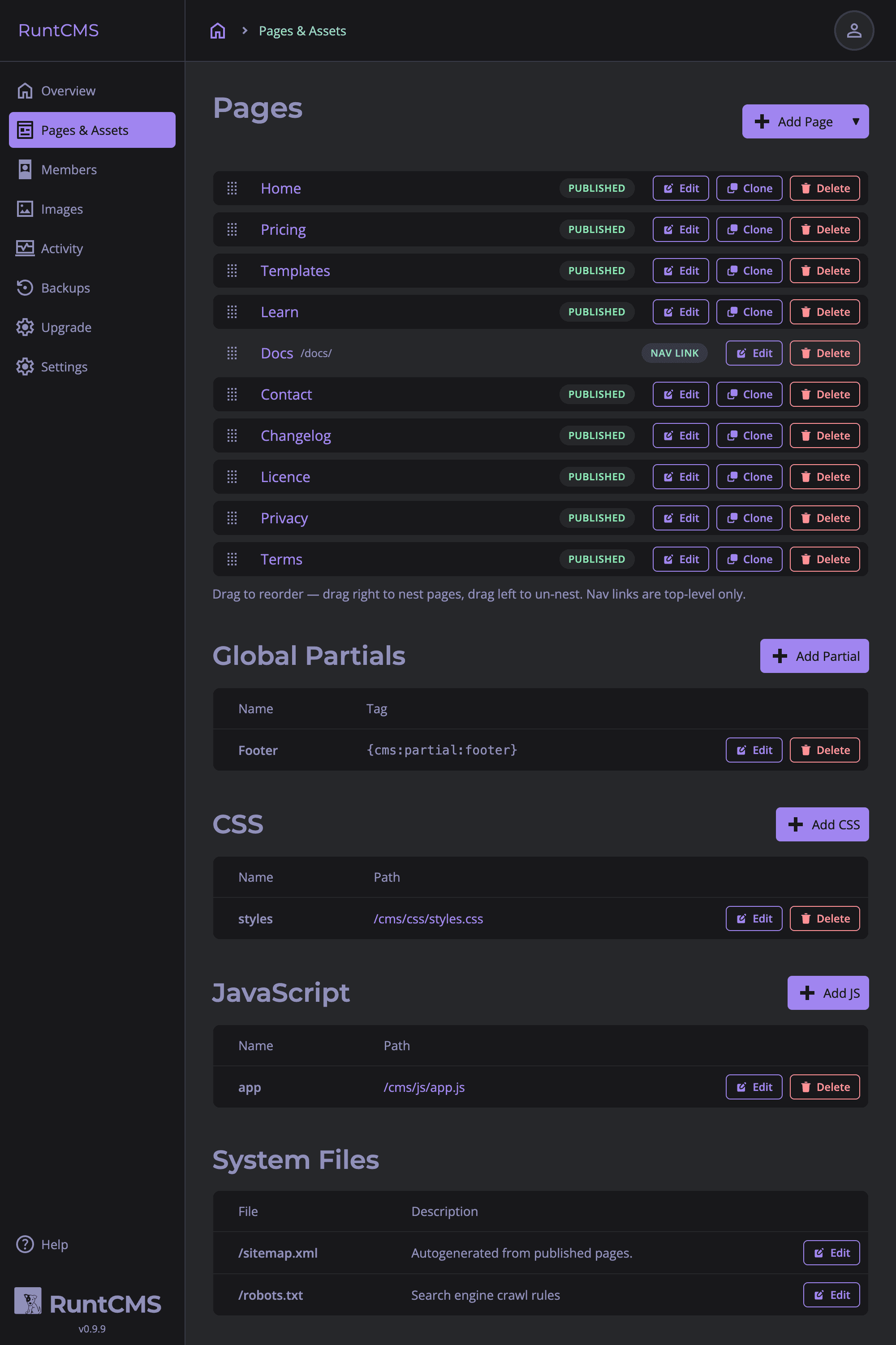
Go to Admin → Pages to see all your pages in a hierarchical tree. You can drag pages to reorder them or nest them under a parent page. The order here is reflected in the {cms:nav:pages} navigation tag.
Page status
Each page has one of three statuses:
| Status | Behaviour |
|---|---|
| Published | Visible to all visitors. Included in navigation and sitemap. |
| Draft | Not accessible to visitors — returns a 404. Visible to logged-in admins only. Not in navigation or sitemap. |
| Unlisted | Accessible via direct URL but not included in navigation or sitemap. Useful for landing pages or pages still being written. |
Creating a page
Click New Page in the top right of the pages list. Fill in:
- Title — the page title, used in
<title>and navigation - Slug — the URL path, e.g.
about→yourdomain.com/about. Auto-generated from the title, but you can edit it. - Meta description — for search engines. Optional but recommended.
- Parent page — nest this page under another. Leave blank for a top-level page.
- Status — published, draft, or unlisted.
home. Requests to / are routed to the page with slug home.
When you save a new page, RuntCMS creates a corresponding HTML file at cms/pages/{slug}.html. Open that file in a text editor and write your page HTML, adding data-cms-region attributes where you want editable content. See Text Regions for details.
Editing page details
Click a page title in the list to open the edit form. You can change the title, slug, description, status, and parent at any time.
Template stats
Below the code editor you'll see a row of small buttons summarising what the template contains — for example: 5 regions · 2 globals · 3 images · 1 partial. These update live as you type, so you can verify your attributes are correct before saving.
Click any stat to highlight every matching attribute in the code. Click it again to clear the highlights. If any region or image name appears more than once on the same page, a duplicates count appears in amber — click it to see which names are repeated.
Save & View Page
The Save Page button has a dropdown caret with additional options. Save & View Page saves your changes and redirects you to the live page on the front end. From there, the runtbar's "Edit this page" button takes you straight back to the editor.
Page hierarchy
Nesting pages under a parent creates a URL hierarchy:
- Parent slug:
services→/services - Child slug:
web-design→/services/web-design
The navigation tag adds CSS classes to help style active parents and children. See Navigation Tag for details.
Reordering pages
Drag and drop pages in the list using the handle on the left side of each row. The order is saved automatically. This order controls the sequence of links produced by {cms:nav:pages}.
Cloning a page
Click the Clone button next to any page to create a copy. The clone gets a new slug (the original slug with -copy appended), is set to Draft status, and its text regions and image slots are copied from the original page at the point of cloning.
Cloning is useful when creating a new page that shares the same layout and initial content as an existing one — for example, adding a new team member bio page.
Deleting a page
Click Delete next to a page. You'll be asked to confirm. Deleting a page removes:
- The page record from the database
- All text region content and revision history for that page
- All image slot records (but not the uploaded image files themselves)
The HTML file in cms/pages/ is not deleted — you can remove it manually if you want to clean up.