Editing Text
RuntCMS puts editing directly on your live site. No separate editing view, no preview mode — what you see is what your visitors see.
The runtbar
When you're logged in, a small toolbar appears at the bottom of every page. This is the runtbar. It's your control centre for editing.
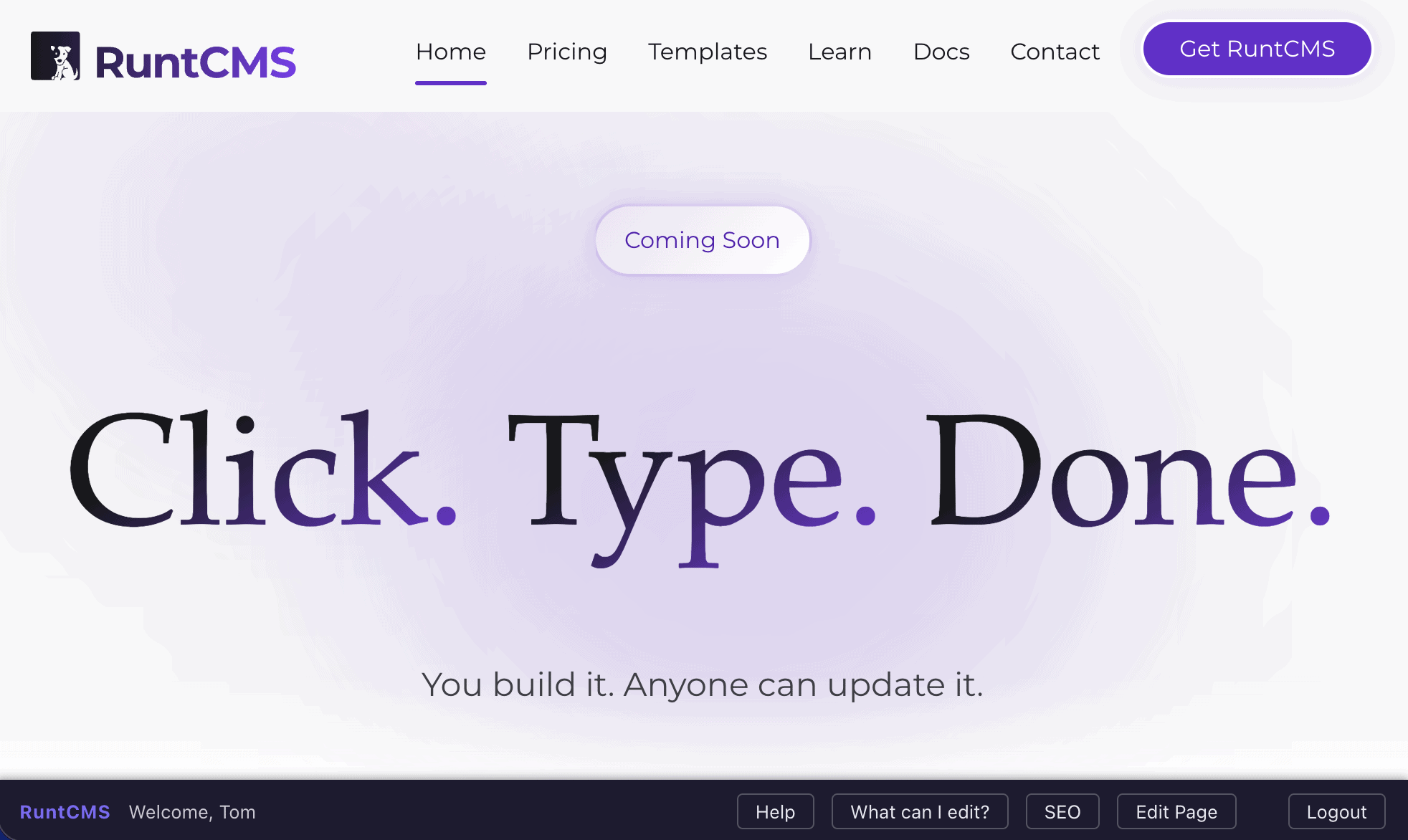
The runtbar only appears when you're logged in. Visitors never see it.
Finding editable regions
Not sure what you can edit on a page? Click the What can I edit? button in the runtbar. All editable text regions and images on the page pulse with a highlight for three seconds, so you can see exactly what's editable.
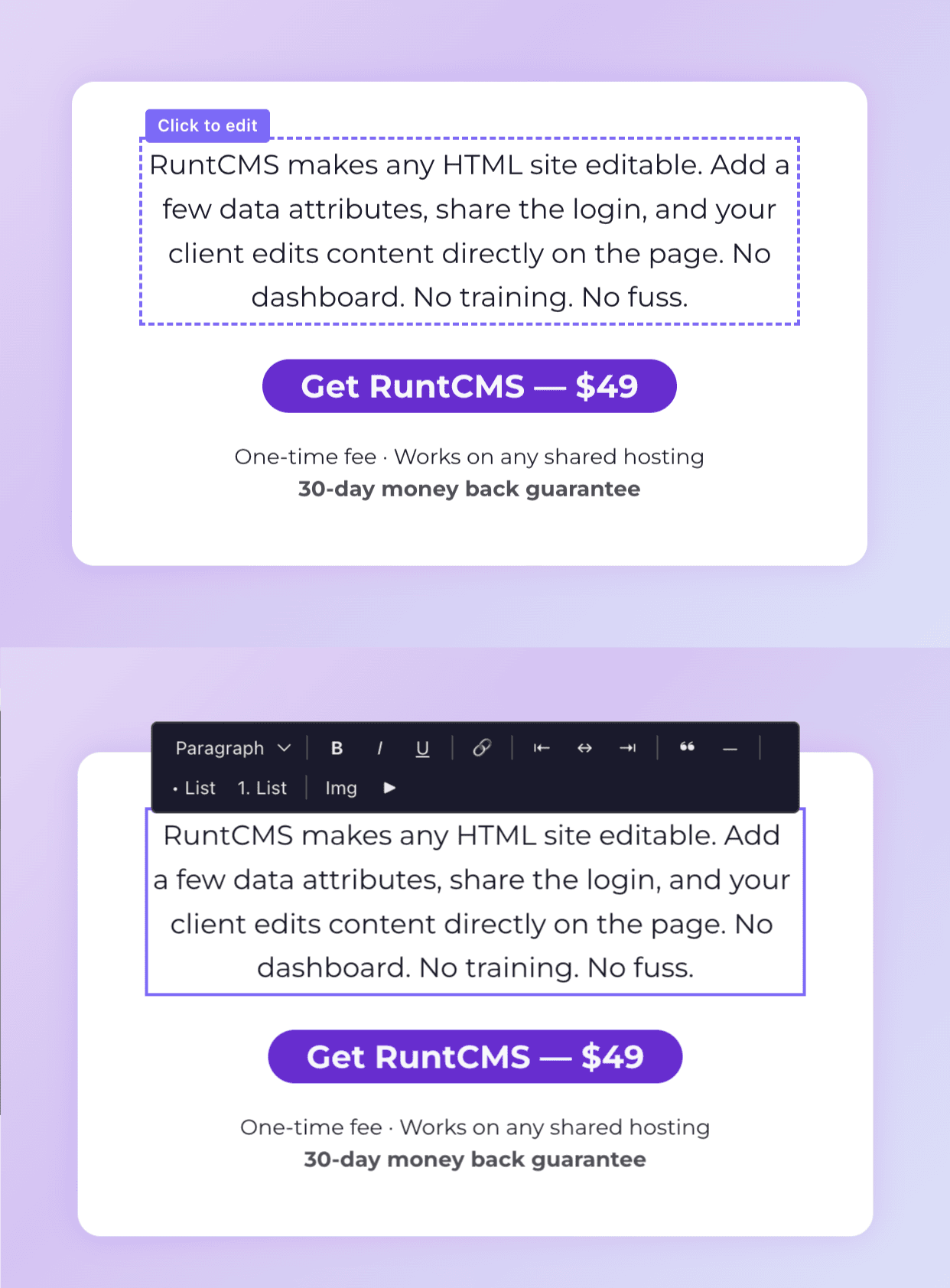
You can also just hover over different parts of the page. Editable regions show a purple border and a "Click to Edit" label when you hover over them.
Clicking to edit
- Hover over the text you want to change. Look for the purple "Click to Edit" hover state.
- Click it. The region activates — the border turns solid purple and a formatting toolbar appears.
- Edit the text directly. You can type, delete, select, and format as you would in a word processor.
Formatting options
The formatting toolbar that appears when you click a region provides:
| Button | What it does |
|---|---|
| B | Bold |
| I | Italic |
| S̶ | Strikethrough |
| H2 | Heading level 2 |
| H3 | Heading level 3 |
| Bullet list | Unordered list |
| Numbered list | Ordered list |
Keyboard shortcuts work too: Ctrl+B / Cmd+B for bold, Ctrl+I / Cmd+I for italic.
Saving
When you're happy with your changes, click the Save button in the runtbar (bottom of the page).
The button changes to Saving… while the request is in flight, then shows ✓ Saved in green for two seconds. If something goes wrong, it shows the error message in red.
data-cms-global), saving it updates the same content on every page where that region appears — not just the current page. The runtbar displays a note to let you know when you're editing a global region.
Navigating away without saving
If you click away to a different page without saving, your changes are lost. RuntCMS does not auto-save drafts. Make a habit of saving before navigating away.
Pasting content
When you paste text from a Word document, website, or other source, RuntCMS strips most formatting. Basic formatting (bold, italic, lists, headings) is preserved; things like custom fonts, colours, and complex table structures are removed.
This keeps your site consistent and prevents pasted styles from overriding your CSS.
Mobile editing
On small screens, the runtbar shows a pencil icon button instead of the full toolbar. Tap it to expand. The formatting toolbar is not shown on mobile — tap to edit, make changes, then save. For complex formatting, use a desktop browser.
Editing page SEO
The runtbar includes an SEO button that lets you update a page's meta title and description without going into the admin panel.
- Click SEO in the runtbar. A panel slides up from the toolbar.
- Edit the Meta Title — this is the text that appears as the clickable blue link in Google search results. Leave it blank to use the page title.
- Edit the Meta Description — the short summary shown under the title in search results. Aim for 120–160 characters.
- Click Save in the panel.
The SEO panel saves independently of text region edits. You can update SEO without making any other changes to the page.