Two-Factor Authentication
Two-factor authentication (2FA) adds a second step to the login process. Even if someone gets your password, they can't log in without your phone too.
How it works
RuntCMS uses TOTP (Time-based One-Time Password) — the same standard used by Google Authenticator, Authy, 1Password, and most authenticator apps. After entering your password, you're prompted for a 6-digit code from your app. The code changes every 30 seconds.
Enabling 2FA
- Go to Admin → Profile.
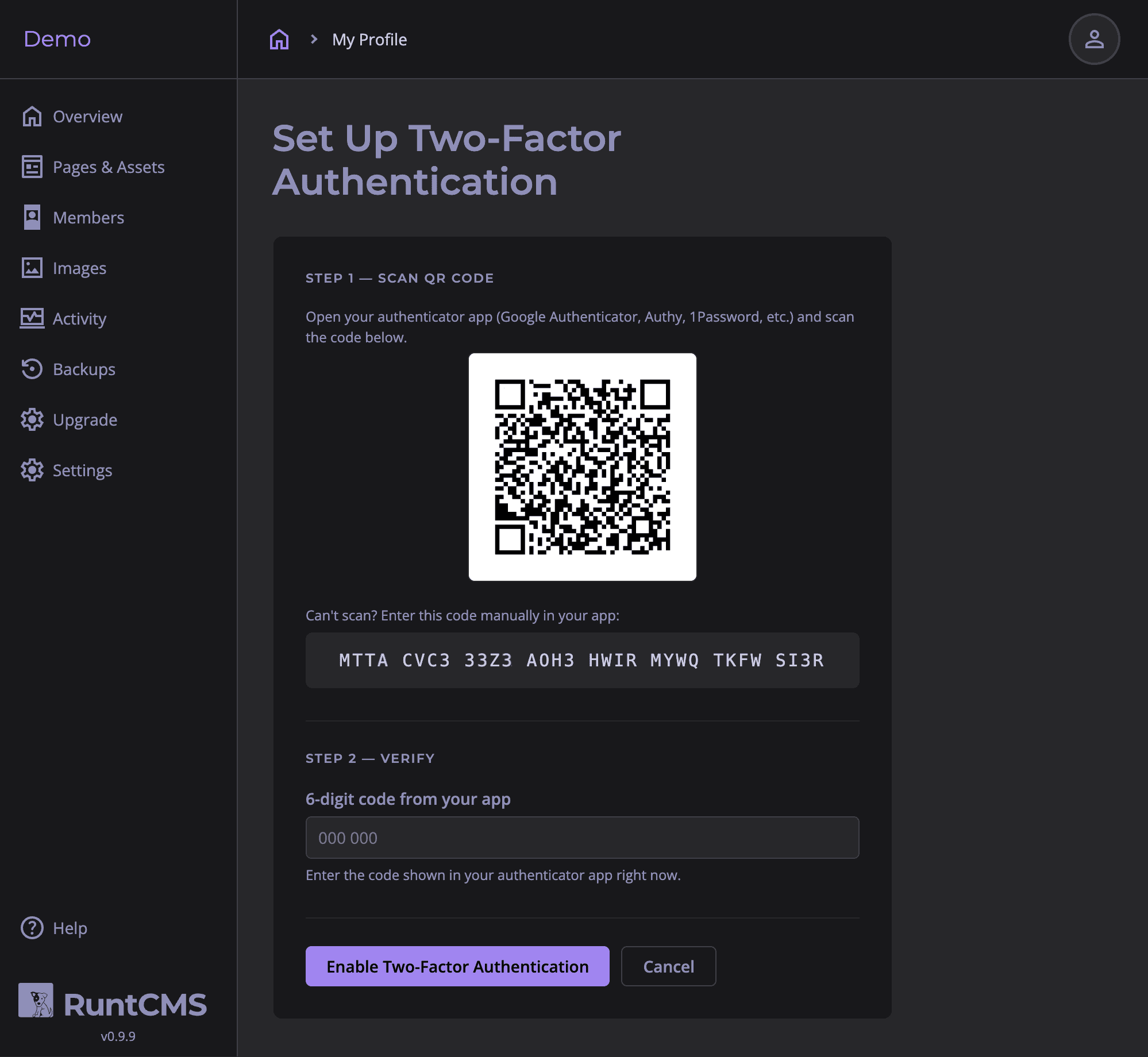
- Under Two-Factor Authentication, click Enable 2FA.
- A QR code appears. Open your authenticator app and scan it.
- Enter the 6-digit code shown in your app to confirm the setup worked.
- Click Enable.
Compatible authenticator apps:
- Google Authenticator (iOS / Android)
- Authy (iOS / Android / desktop)
- 1Password (built-in TOTP)
- Bitwarden (built-in TOTP, Premium)
- Microsoft Authenticator
Recovery codes
When you enable 2FA, RuntCMS generates 10 single-use recovery codes. Save these somewhere safe — a password manager is ideal.
If you lose access to your authenticator app, enter a recovery code at the 2FA prompt instead of the 6-digit code. Each code can only be used once.
Regenerating recovery codes
If you've used most of your recovery codes, or you think they may have been compromised, go to Profile → Regenerate backup codes. The old codes are immediately invalidated and a new set of 10 is generated.
RuntCMS will warn you on your profile page if you have 2 or fewer recovery codes remaining.
Logging in with 2FA
- Enter your email and password as normal.
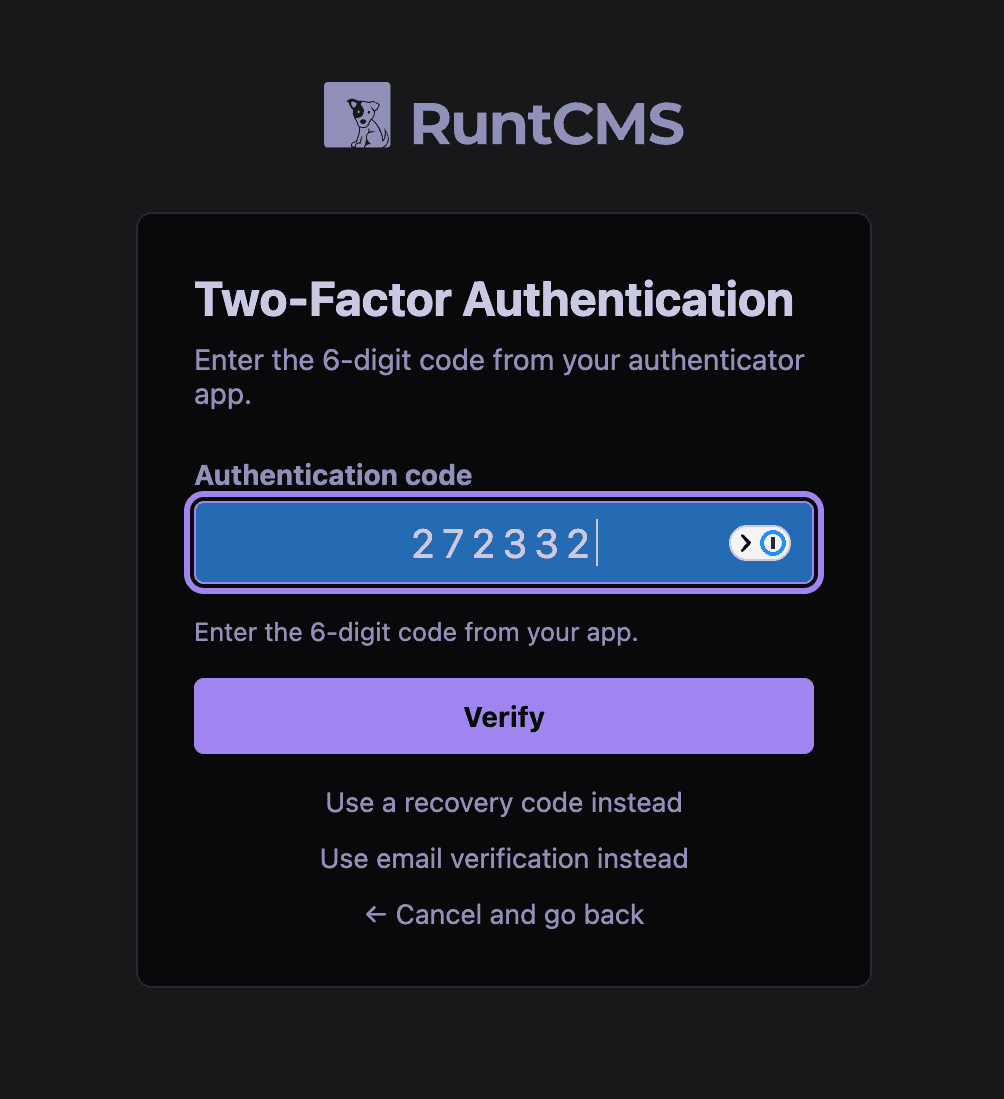
- You're taken to a second screen asking for your 6-digit code.
- Open your authenticator app, find the RuntCMS entry, and enter the current code.
- Click Verify.
Email OTP fallback
If you don't have your authenticator app available, click Use email verification instead on the 2FA challenge page. RuntCMS sends a one-time code to your account email address. Enter that code to complete login.
Disabling 2FA
Go to Profile → Two-Factor Authentication and click Disable 2FA. You'll be asked to enter your current TOTP code to confirm.
After disabling, you can log in with just your password. The authenticator app entry can be deleted from your app.