Password & Security
Both admins and editors can manage their password and security preferences from their profile page.
My Profile
Admins access the profile page from the account menu in the top-right corner of the admin panel.
Editors do not have access to the admin panel — they can reach their profile page from the runtbar on the live site. Click the account icon in the runtbar to open the account menu, then select My Profile.
The profile page has three sections:
- Account — update your display name. Email changes must be made by an admin via Admin → Users.
- Change Password — enter a new password and confirm it. Leave both fields blank to keep your existing password.
- Security — enable Two-Factor Authentication (2FA) and email verification.
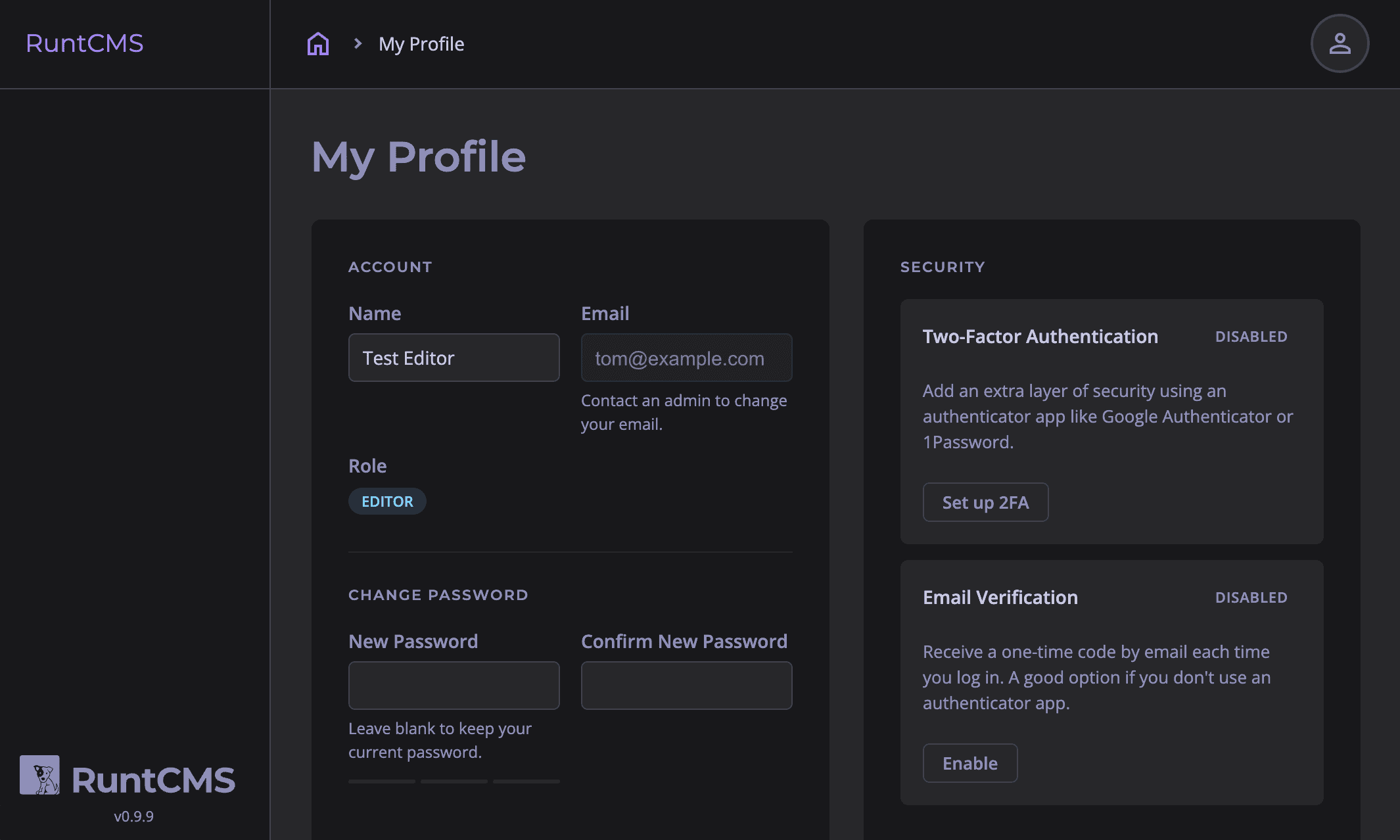
Changing your password
From the profile page
- Open the account menu — admins click the account icon in the top-right of the admin panel; editors click the account icon in the runtbar on the live site.
- Select My Profile.
- Scroll to Change Password.
- Enter your new password and confirm it.
- Click Save changes.
From the runtbar
You can also change your password directly from the live site via the runtbar at the bottom of the page.
Two-factor authentication
Two-factor authentication (2FA) adds a second step to login. After entering your password, you'll be prompted for a time-based code from an authenticator app (Google Authenticator, Authy, 1Password, etc.).
To enable 2FA:
- Go to My Profile → Security → Two-Factor Authentication.
- Click Set up 2FA.
- Scan the QR code with your authenticator app.
- Enter the 6-digit code to confirm, then click Enable Two-Factor Authentication.
- Save the recovery codes shown — these are your backup if you lose access to your authenticator app.
Email verification
Editors can enable email verification as an alternative to an authenticator app. When enabled, a 6-digit code is sent to your email address each time you log in.
To enable it, go to My Profile → Security → Email Verification and click Enable.
Password requirements
RuntCMS does not enforce a specific password policy, but we strongly recommend:
- At least 12 characters
- A mix of letters, numbers, and symbols
- Unique — not reused from other sites
A password manager makes this easy to do without having to memorise complex passwords.
Forgot your password?
- Go to the login page:
https://yourdomain.com/cms-login - Click Forgot password?
- Enter your email address.
- Check your inbox for a reset link — it expires after one hour.